
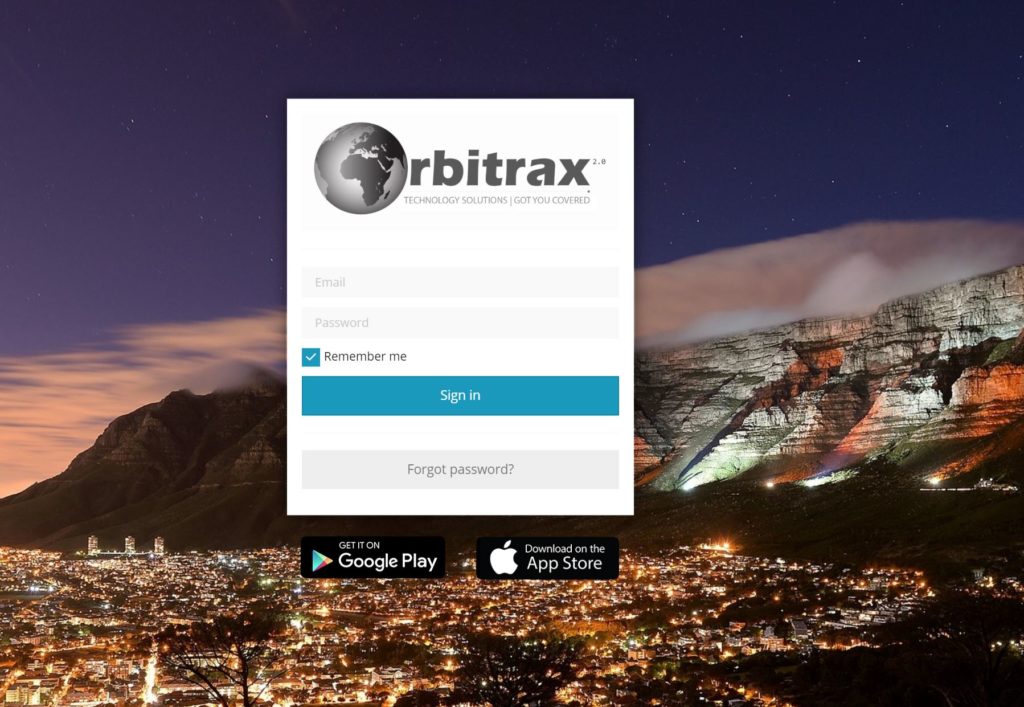
After logging in, you will be redirected to the platform main page. This page allows to access most common tracking features and settings, monitor device positions on map and get detailed information such as speed, address, coordinates, history and more.
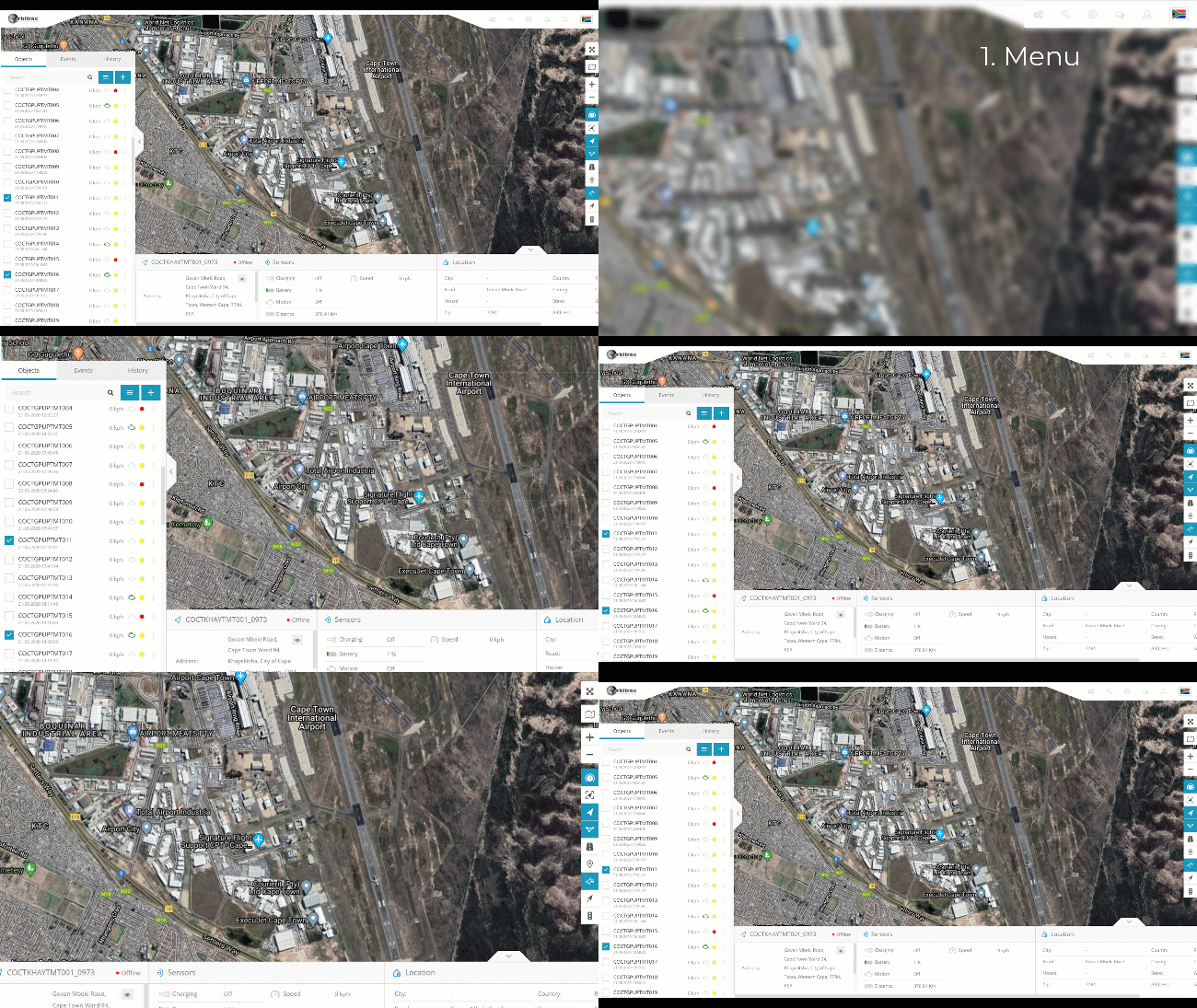
1. Menu | 2. Navigation panel | 3. Map control
MENU

1. Tools | 2. Setup | 3. Account
The Menu is used to access Tools, such as Alerts , Reports and Geozones and your Account settings in order to update and change your login password. In some cases, we may have removed the permission for some of these tools depending on your subscription or contract with our product. We have separate pages in the manual for more detail into each menu item and tools.
Navigation Panel
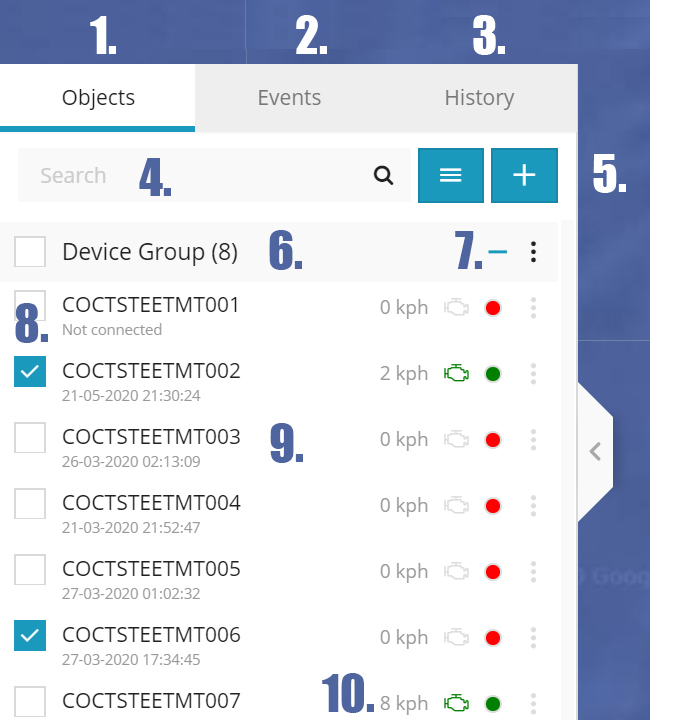
- Objects tab – view and manage all devices.
- Events tab – history of events and alerts/notifications can be viewed (device offline, geofence alert, low battery, etc.)
- History tab – view detailed history for each device, graphs, battery, realtime playback, elevation and more.
- Search – find devices by name or imei.
- Add device – add new devices.
- Groups – group name and number of devices in that group.
- Groups expander – expand or collapse groups
- Visibility checkbox – turns on or off objects visibility on map
- Object information – device name, date, time of last received location, online/idle/offline status
- Speed – shows current device speed.
Map Control

- Full Screen – hides all tools and shows only devices on the map.
- Change map – change map type to streets, sattelite and hybrid.
- Zoom – zoom in and out of the map.
- Objects – show or hide cumulative objects in the map in area.
- Fit to Screen – Fit screen to size showing all selected devices.
- Devices – hide and unhide devices from the map.
- Geozones – Hide and unhide geozones from the map.
- Routes – Hide and unhide routes from the map.
- POI – Hide and unhide Points Of Interest from the map.
- Names – Hide and unhide device names from the map.
- Tails – Hide and unhide tails from the map.
- Traffic – Hide and unhide the Google Live Traffic layer.
Note that some of the above features are disabled by default and only used in custom setups for customers that have requested them.
Full Screen Mode is perfect for use in Control rooms and on monitoring stations.